Not long ago, adding AI to a website meant either paying for a third-party SaaS tool, hiring someone who knew how to wrangle APIs, or just… not doing it. The Drupal AI module changes that. It brings AI capabilities directly into Drupal 11 — and you don’t need a data science team or an enterprise budget to get started.
Whether you’re trying to speed up content creation, stop manually writing alt text for every image, or finally add a chatbot that actually knows what’s on your site — the tools are there. They just need a bit of setup.
This is a practical walkthrough: what the module is, how to install it, which AI providers to connect, and which submodules are actually worth your time. And honestly, it’s a lot more straightforward than it sounds.
What Is the Drupal AI Module?
The official name on Drupal.org is AI (Artificial Intelligence), but most people just call it the Drupal AI module. At its core, it’s a provider-agnostic framework — meaning it doesn’t care which AI service you’re using. It creates an abstraction layer between your Drupal site and whatever AI you’ve plugged in, whether that’s OpenAI, Anthropic (Claude), Google Gemini, AWS Bedrock, Mistral, or Hugging Face. Swap providers later without rewriting anything. That’s the whole idea.

It’s a genuinely useful design choice, especially for organizations that don’t want to bet everything on one vendor’s pricing or roadmap. You pick what works for your project today, and the module’s ecosystem of submodules sits on top of that conection.
Version 1.1.0 dropped in 2025 and was a pretty big deal — it brought in an Agentic Framework, much smarter AI-driven search, improved CKEditor automators, and Drush commands so developers can trigger AI operations straight from the command line without touching the admin UI.
“Most teams we work with are still treating AI like a bolt-on feature — but the Drupal AI module flips that completely. It’s not a plugin, it’s infrastructure. And once you build on infrastructure, you move fast.” — Adam Aloi, Managing Partner, Alliance Interactive
Before You Begin: Requirements
Nothing exotic here, but worth double-checking before you start:
- Drupal 10.4 or higher — fully compatible with Drupal 11
- PHP 8.3 — recommended for best performance
- Composer — for dependency management
- An API key from at least one AI provider — OpenAI is the most common starting point
Step 1: Install the AI Module and Key Module
The AI module has one key dependency: the Key module, which handles storing API credentials securely inside Drupal rather than hardcoding them into config files. You install both at the same time, and Composer takes care of pulling in Key automatically:
composer require 'drupal/ai:^1.2'
drush en ai -y
drush cr
That’s it for this step. The Key module comes along for the ride — you don’t have to chase it down separately.
Step 2: Install Your AI Provider Module
Now you need to tell Drupal which AI service to actually talk to. The core module doesn’t include any providers out of the box — you install a separate provider module for whichever service you’re using. Most people start with OpenAI, but the choice is entirely yours:
composer require 'drupal/ai_provider_openai:^1.2'
drush en ai_provider_openai -y
drush cr
Other available providers:
- Anthropic (Claude) — drupal/ai_provider_anthropic
- AWS Bedrock — drupal/ai_provider_aws_bedrock
- Google Gemini — drupal/ai_provider_google_gemini
- Hugging Face — drupal/ai_provider_huggingface
One thing worth knowing: you can install multiple providers and set each one to handle a different type of operation — so you might use OpenAI for chat but a cheaper model for embeddings. Each operation type is configured independantly under the default settings, which we’ll get to in Step 4.
Step 3: Generate and Store Your API Key
Go to your AI provider’s developer portal and grab an API key. For OpenAI that’s platform.openai.com — just create an account if you don’t have one, then generate a new secret key. Once you have it:
- In your Drupal admin, go to Configuration → System → Keys
- Click Add key
- Give it a descriptive name (e.g., “OpenAI Production Key”)
- Select Configuration as the key provider, or use environment variables for tighter security
- Paste your API key and save
Storing keys through the Key module keeps them seperate from your site’s exported configuration — so when you run a config export and commit it to Git, your API credentials aren’t going along for the ride. It’s a small habit but it’ll save you a headache down the road.
Step 4: Configure Your AI Provider in Drupal
With the key saved, connecting Drupal to your AI provider is quick:
- Navigate to Configuration → AI → Provider Settings
- Select your installed provider (e.g., OpenAI)
- Choose the API key you created in the previous step
- Click Save configuration
On first save, Drupal will automatically set your provider as the default for a whole range of operations — chat, text generation, embeddings, and more. You’ll see a confirmation message for each one. These can all be tweaked later under Configuration → AI → AI Default Settings, which is where the real fine-tuning happens.
Step 5: Explore the AI Explorer
Before you flip anything on for editors or end users, take some time with the built-in AI Explorer. You’ll find it at Configuration → AI → AI Explorer.
It’s basically a sandbox — you type prompts, pick a model, and see what comes back. Use it to confirm your connection is actually working, test how different models respond to the same prompt, and get a feel for what kind of wording works best. Don’t skip this step. It’s much easier to catch weirdness here than after you’ve deployed something to an editor’s toolbar.
Key Submodules Worth Enabling
This is where things get interesting. The core module handles the provider connection, but the actual features your editors and visitors will use come from submodules. You don’t need to enable everything at once — here are the ones worth looking at first:
AI CKEditor
This one is probably the most immediately useful for content teams. It puts an AI button right inside the CKEditor 5 toolbar — editors can select text and ask the AI to rewrite it, adjust the tone, fix grammar, summarize it, or translate it, without ever leaving the editor. Once you’ve seen it in action it’s hard to go back.
drush en ai_ckeditor -y
After enabling, head to Configuration → Content Authoring → Text Formats and add the AI CKEditor plugin to whichever text format your editors use.
AI Content Tools Adds
AI assistance directly to the node edit form — so editors can trigger tone adjustments, auto-suggest taxonomy terms, generate content summaries, and run moderation checks right there on the page. This is particulary useful for teams publishing a lot of content, where small consistency issues tend to pile up fast.
AI Image Alt Text
Probably the easiest win in the whole module. Click a button on an image field, and the AI generates descriptive, accessibility-compliant alt text for you. If your content team has been skipping alt text because it’s tedious — which, fair — this will change that pretty quickly.

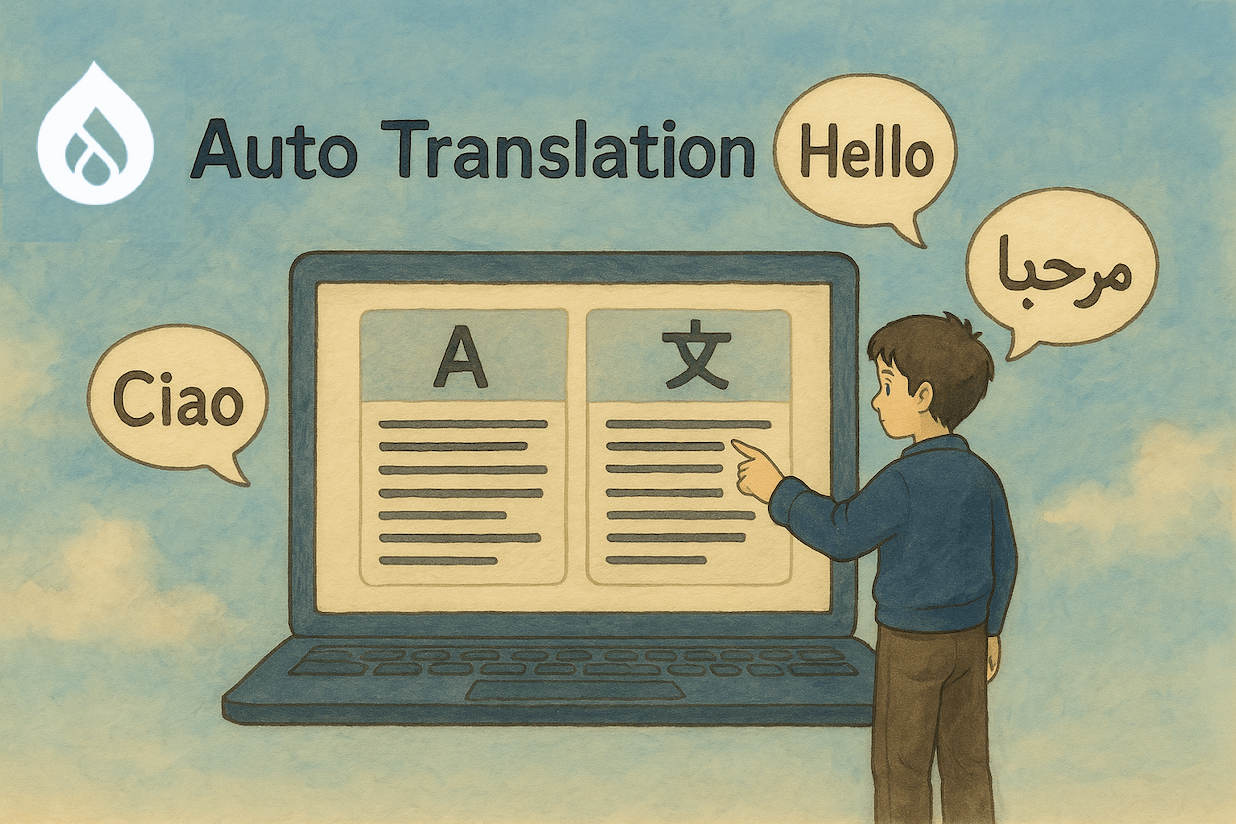
AI Translate
One-click translation for multilingual sites. Instead of copy-pasting content into an external tool and back again, editors trigger the translation from right inside the content form. It works best when paired with Drupal’s native content translation system, and the quality is solid for most use cases.
AI Assistants API + Chatbot
This one sets up an AI chatbot on your site, and what makes it actually useful is that you can connect it to your content using Retrieval Augmented Generation (RAG). That means the chatbot answers questions based on what’s actually on your site, not just whatever the AI model was trained on. Much fewer hallucinations, much more usefl to visitors.
AI Automators
For anyone managing content types with a lot of fields, this is a huge time saver. You can set up automated workflows that populate fields, pull text out of uploaded files, scrape structured data from URLs, and chain multiple operations together. If you find yourself doing the same repetitive AI-assisted tasks over and over, automators are how you stop doing that.
Tips for a Successful Rollout
Seriously — don’t enable everything at once. Pick one thing, like AI CKEditor or AI Image Alt Text, get your team comfortable with it, and expand from there. Trying to roll out six new workflows at once is a good way to get none of them to stick.
On production, store API keys as environment variables rather than in the Drupal config system. It’s one extra step during setup but it keeps credentials out of your config exports and Git history — and you really don’t want those things in your repo.
GPT-4o might be the right call for complex content generation, but it’s overkill for writing alt text. Set your defaults per operation type under Configuration → AI → AI Default Settings and you’ll avoid burning through API credits on tasks that a cheaper model handles just fine.
AI suggestions are a starting point, not a finished product. The logging tools built into the module let you audit what’s being sent to and returned from your provider, which is handy for both quality control and compliance conversations.
The module is moving fast and documentation doesn’t always keep up. The Drupal.org issue queue for the AI module is honestly where you’ll find the most useful real-world advice — especially for edge cases and newer submodule features.
What’s Coming Next
Version 1.2.0 is currently in alpha and it’s got some genuinely useful stuff in the pipeline. Field widget actions will let editors trigger AI operations directly from entity forms. There’s a Prompt Library coming for teams who want to standardize prompts across projects rather than everyone rolling their own. And AI processing is expanding beyond text and images to cover PDFs and video files, which opens up a lot of content workflow possibilities.
The broader Drupal AI Initiative — which pulled in over $100,000 in community funding at launch — is still going strong. The focus is on making AI feel like a native part of Drupal rather than an afterthought, with proper governance, audit trails, and compliance tooling baked in rather than bolted on.
Getting Help
- Module documentation: drupal.org/project/ai
- Drupal Slack: Join the #ai channel for community discussion and troubleshooting
- Issue queue: For bug reports, feature requests, and real-world implementation advice
- DrupalCon recordings: The Driesnote and dedicated AI sessions provide strong visual introductions to what the module can do
The Drupal AI module isn’t a novelty anymore. For site builders willing to put in a few hours of setup, it delivers real value — for editors, for content quality, for accessibility, and for end users. And unlike a lot of “AI-powered” tools, it doesn’t require you to commit to one vendor or rip anything out if you change your mind later. If your Drupal 11 site still isn’t using it, there’s no better time to start than now.